Contents Jump to section
Migrate BitLocker to Microsoft Entra ID

How can you migrate BitLocker to Microsoft Entra ID without needing to re-encrypt or add new recovery keys to your managed devices? This article will illustrate one way to escrow (backup) the existing recovery key, using nothing but a Microsoft Intune PowerShell script.
UPDATED March 2026 -- This post has been reviewed and updated to reflect current Microsoft product names, portal locations, and technology status. See inline notes for specific changes.
The death of MBAM and AD Escrowed credentials
The Microsoft BitLocker Administration and Monitoring tools have gone out of mainstream support. And any cloud-first forward-thinking company will likely be looking to escrow the existing and future recovery keys for BitLocker to Microsoft Entra ID / Microsoft Intune.
If you have a solid hybrid cloud strategy, Microsoft Configuration Manager is a great choice for BitLocker management. And if that is your scenario, I suggest you read this series: Goodbye MBAM -- BitLocker Management in Configuration Manager.
NB: MBAM features have all been ported to Microsoft Configuration Manager. And are fully supported going forward.
Configuring Intune to enforce and escrow BitLocker to Microsoft Entra ID
This part is well documented by Microsoft on the docs page: Encrypt Windows 10 devices with BitLocker in Intune.
However, you should be aware that you can actually deploy your Intune managed BitLocker policy on top of your existing GPO policy, as long as you have not configured the MDMWinsOverGP CSP. This way, you will ensure that you have all keys escrowed into Microsoft Entra ID before dismantling your MBAM solution.
The script that will help you migrate BitLocker to Microsoft Entra ID
Now, a policy alone will not migrate existing device recovery keys escrowed in MBAM or AD to Microsoft Entra ID. You will need to take care of those devices with a PowerShell script. Needless to say, the devices must be enrolled into Microsoft Intune for this to work.
Please download Invoke-EscrowBitlockerToAAD.ps1 from my PowerShell bucket on GitHub before continuing.
NOTE (Updated 2026): The script filename
Invoke-EscrowBitlockerToAAD.ps1retains "AAD" in its name for backward compatibility and GitHub URL continuity. The functionality targets Microsoft Entra ID (formerly Azure AD) for BitLocker key escrow.
The exact scenario that I had to cover when building the script was:
- MBAM with GPO deployed to all devices on-prem.
- Devices Microsoft Entra hybrid joined and enrolled.
- BitLocker policy deployed from Intune that matches the on-prem GPO Policy.
Script deployment via Intune
From the Microsoft Intune admin center, complete the following steps:
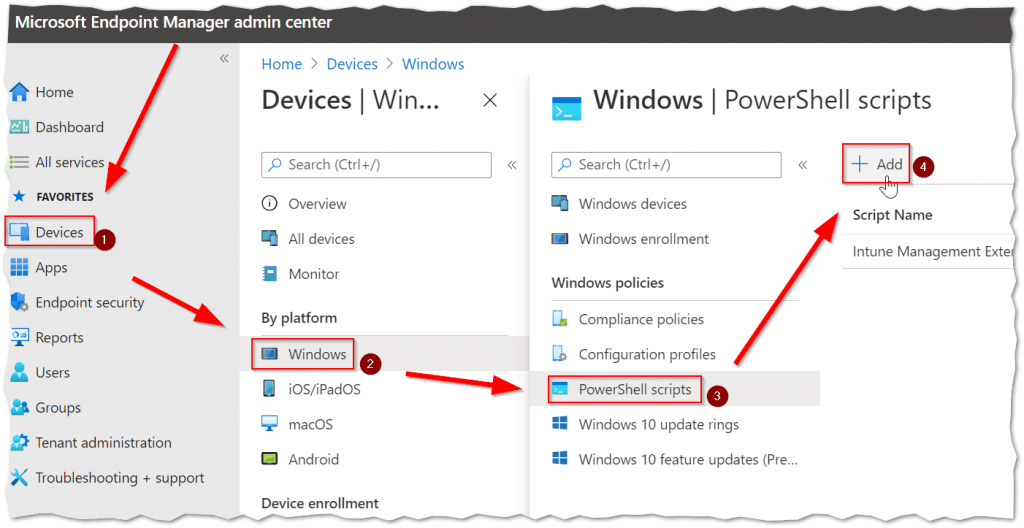
- Click the "Devices" button.
- Then the "Windows" platform button.
- Click the "PowerShell scripts" button.
- And finally, click the "Add" button.
Script Basics
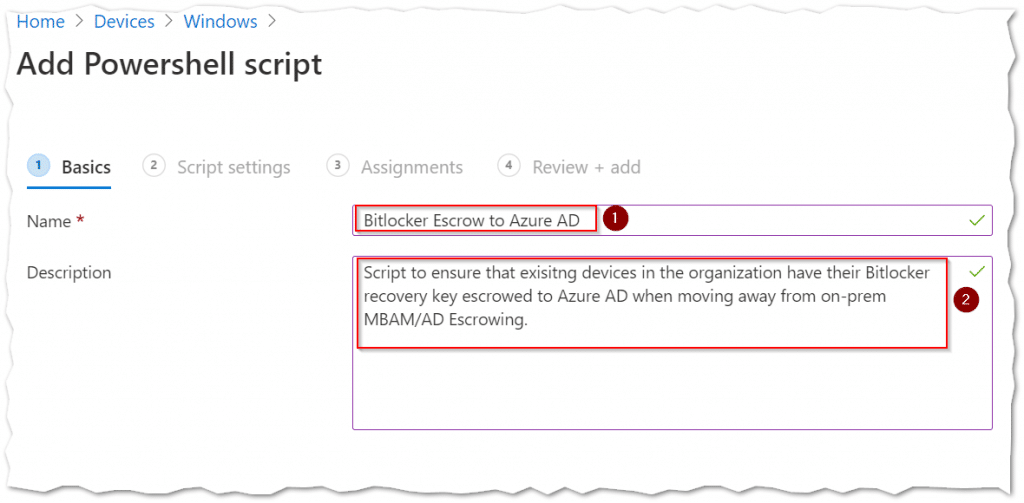
- Type a fitting "Name" to be shown in the script overview.
- Type a fitting "Description" that clearly indicates the script's purpose.
Script settings
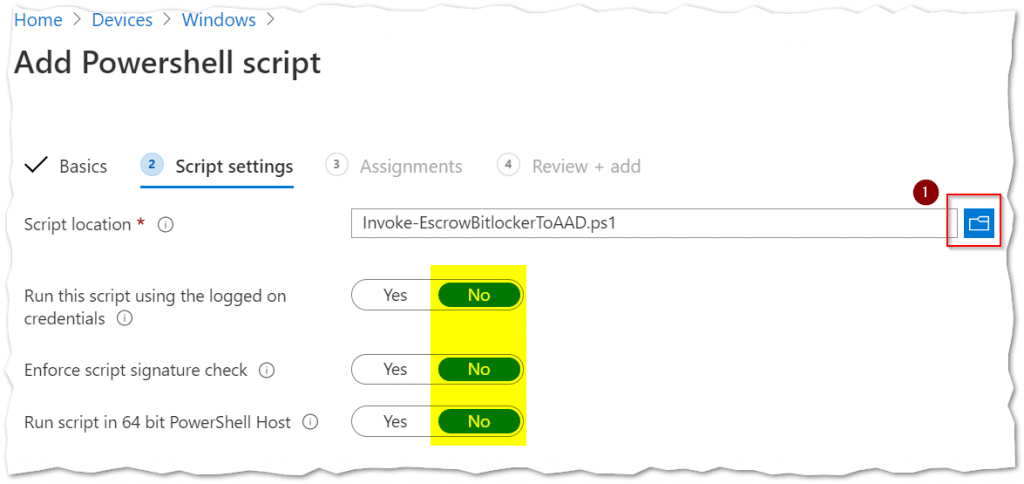
- Click the "Blue folder icon" to select the escrow Bitlocker script file to be deployed.
Please pay attention to leave the script settings at their defaults.
Script Assignments
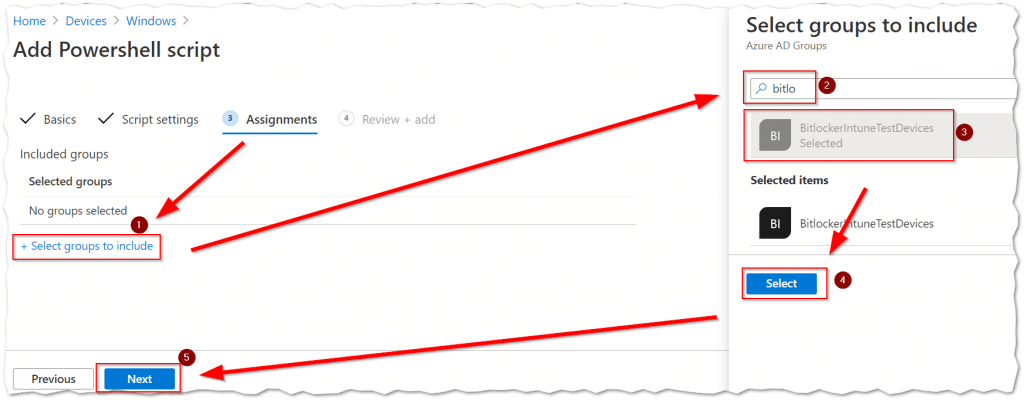
- Click the "Select groups to include" link.
- "Search" for the Security Group that includes the devices you wish to target.
- Select your security group in the results.
- Then click the "Select" button.
- Click the "Next" button to continue.
Script deployment Review + add
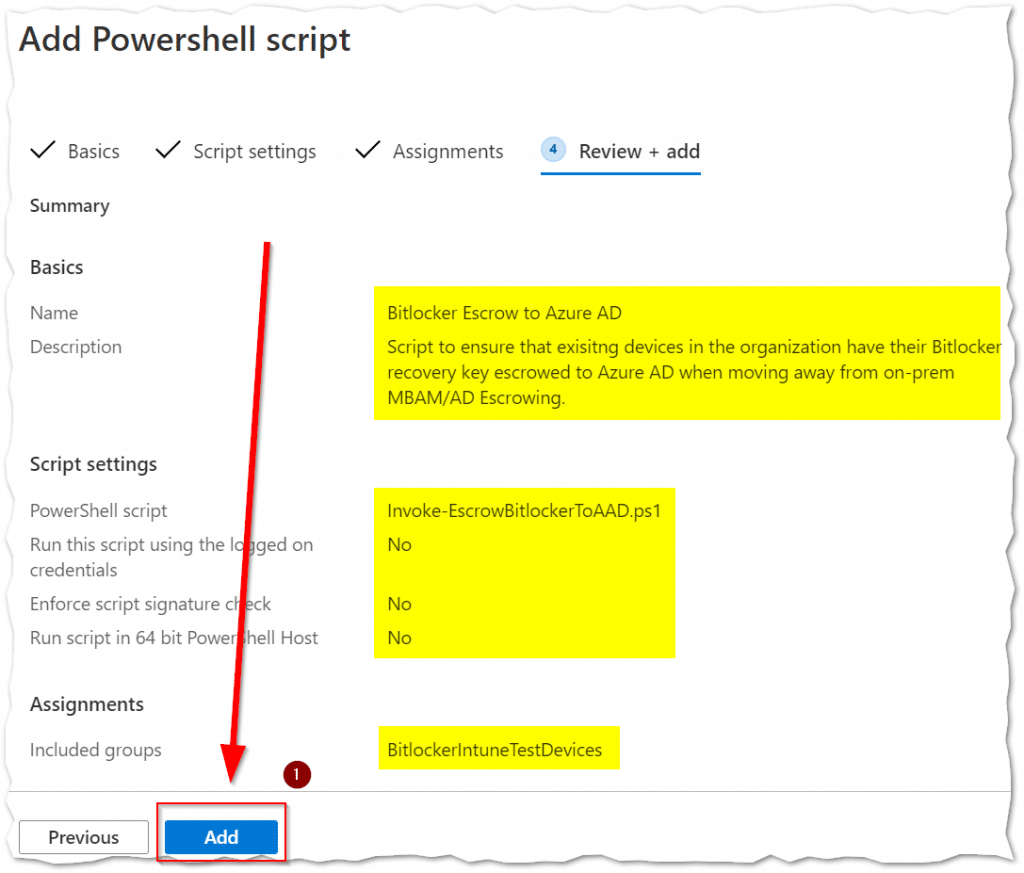
Make sure that all the Basics, Script settings, and Assignments are correct. Then click the "Add" button to complete the deployment.
You have now completed all the steps!
Conclusion
Migrating BitLocker to Microsoft Entra ID, using Intune to escrow the existing Keyprotectors with a PowerShell script is possible. And I am very keen on hearing what other ways the community has come up with!