Contents Jump to section
Securing SCEP/NDES for Intune with gMSA

UPDATED March 2026 -- This post has been reviewed and updated to reflect current Microsoft product names, portal locations, and technology status. See inline notes for specific changes.
Swap out your regular service account with an awesome secure group managed service account!
In this blog post on "Securing SCEP/NDES for Intune with gMSA," you can learn how to tighten security if you have NDES and SCEP configured for your Intune clients using a regular AD User Account as your NDES Service account.
The NDES service account has the permissions to act as a registration authority. The NDES service can enroll client identity certificates for any user in the organization. And you should regard this account as a high-value target for any attackers that might gain a foothold inside your perimeter.
This is why I highly recommend that you make it very tough to compromise and abuse this account due to any human error like storing the password in an unsecure location.
gMSA basics
If you are unfamiliar with the term gMSA; It stands for Group Managed Service Accounts and is a feature that allows you to avoid having to manage the password and lifecycle of your service accounts.
A gMSA acts much like a computer account. And is tied to specified servers and is not useable by just any server on your network.
The rest of this blog post will be expecting you to have already set up a gMSA account on the NDES server and tested that it works using PowerShell.
Please notice; that this guide has been tested to work on Windows Server 2019 with a GUI installed.
Replacing the regular NDES service account with a gMSA
Log into the remote desktop of your NDES server to begin securing SCEP/NDES for Intune with gMSA.
To replace the original NDES service account, we first need to take care that the new gMSA account can read the certificates Private keys and has the correct account permissions.
NB: Do NOT remove the existing service account from the ACLs. When everything works as expected, you can go ahead and delete the old service account instead of removing it from all the ACLs.
NDES Private keys permissions
- Start the program "certlm.msc" from "run."
- Navigate to "Personal" -> "Certificates" and find the NDES Client certificate.
- Right-click on the certificate and chose "All tasks" -> "Manage Private Keys..."
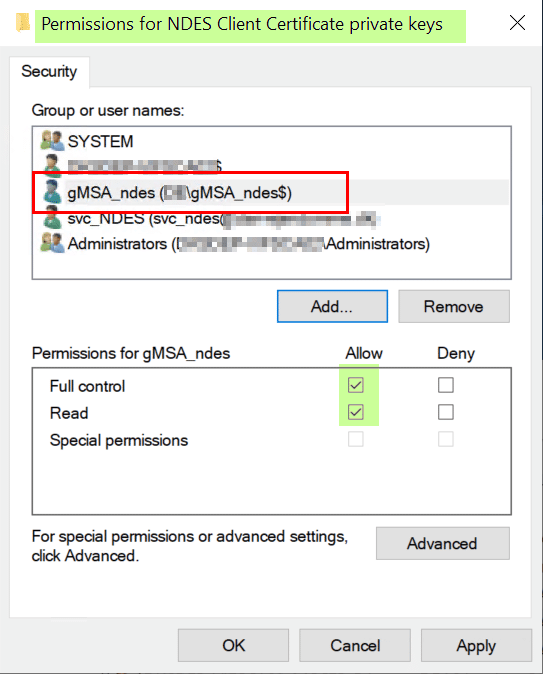
- Add the gMSA account to the Access Control List (ACL).
- Pay attention to the fact that you should add a $ sign at the end of the account name.
- Make sure to adjust the search scope to include Managed Service Accounts.
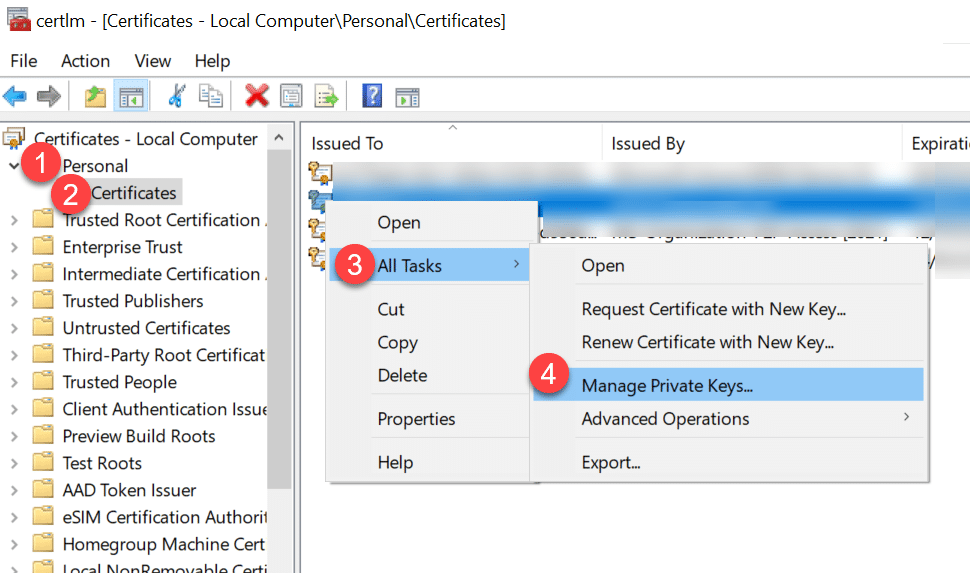
Click the "Add..." button to find and add the gMSA account.
Now, continue adding the gMSA account and permissions to the rest of the certificates private keys that relate to NDES:
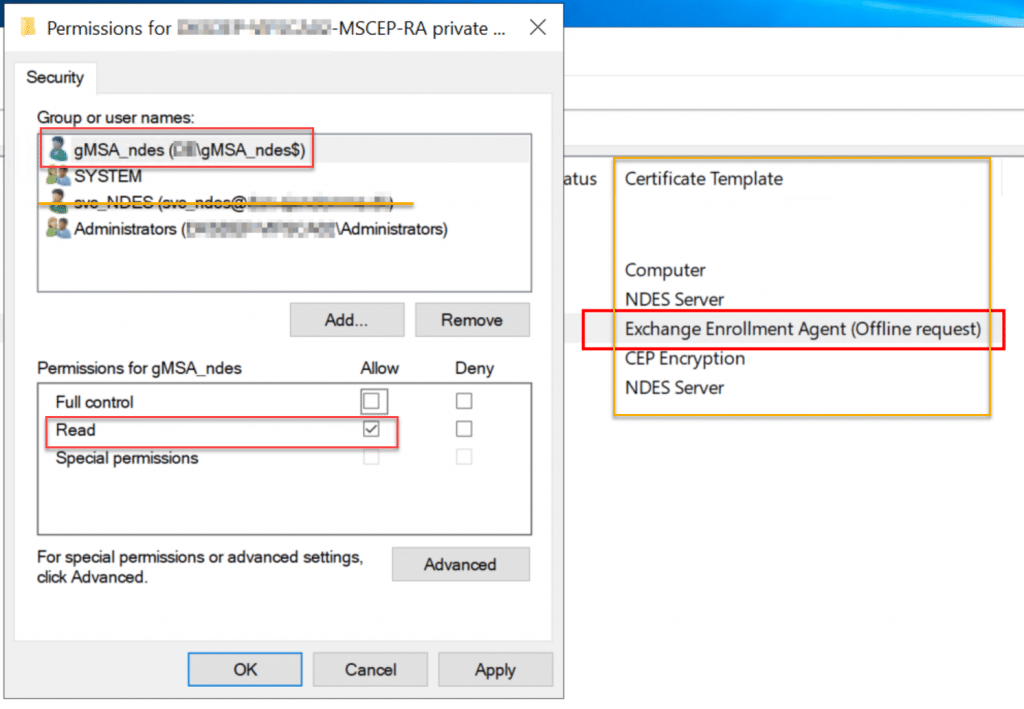
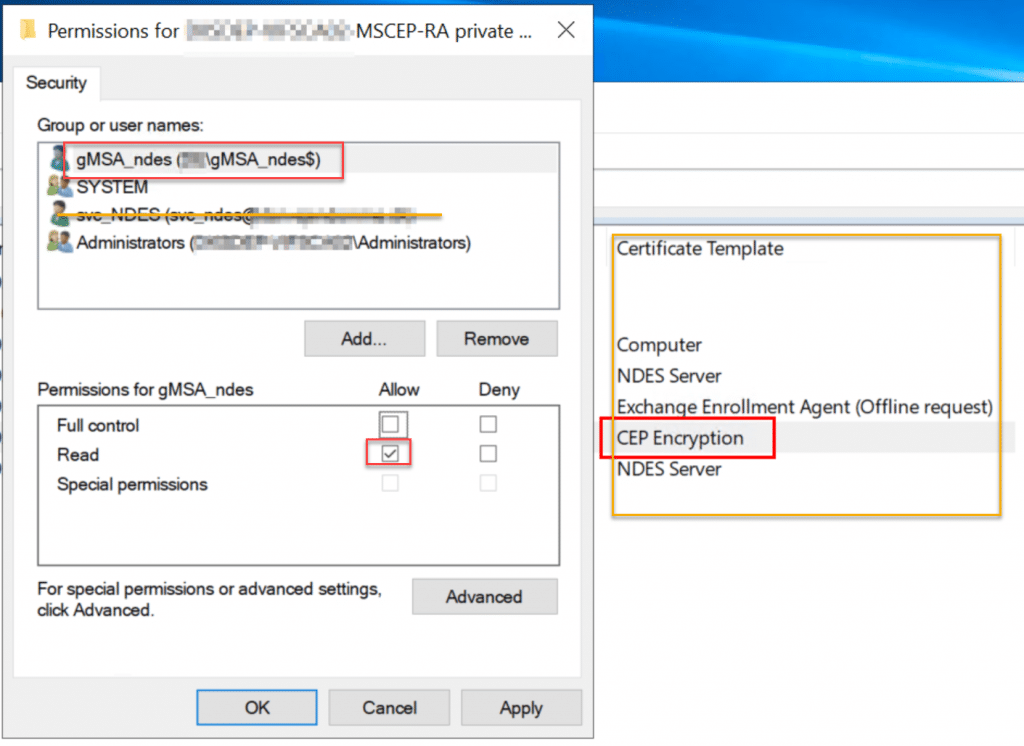
gMSA account permission on the NDES server
The new gMSA account will need permissions to logon locally, as a batch job, and as a service.
- Start the program "gpedit.msc" from "run" on the NDES server.
- Navigate to "Computer Configuration" -> "Windows Settings" -> "Security Settings" -> "Local Policies" -> "User Rights Assignment."
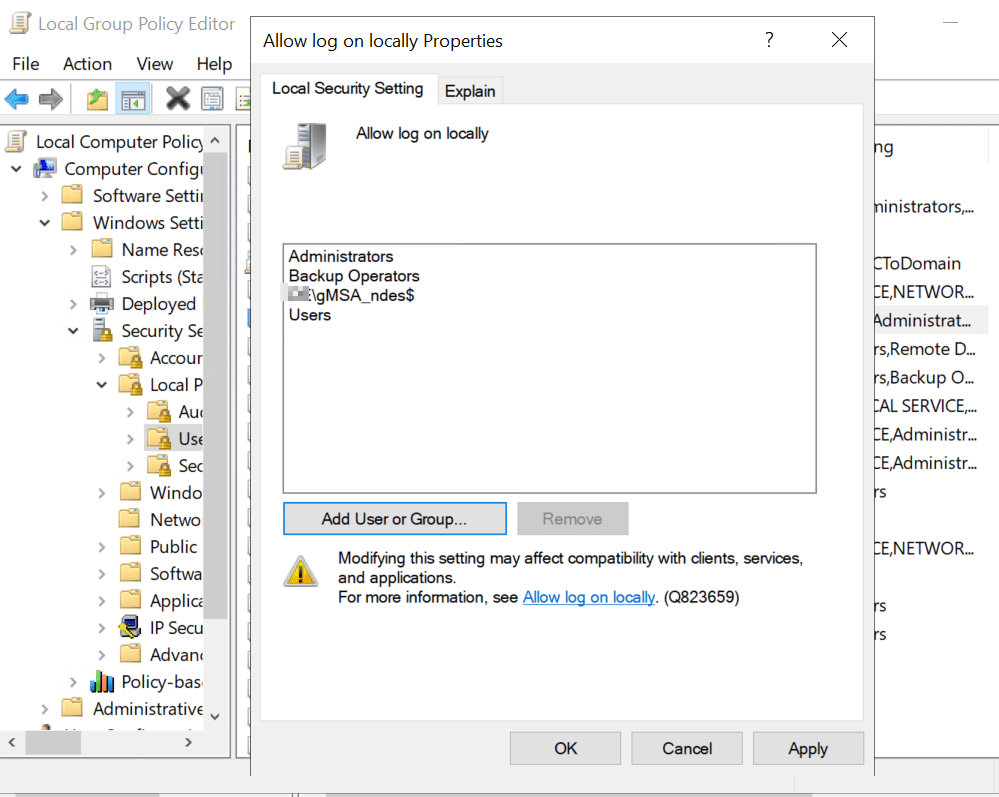
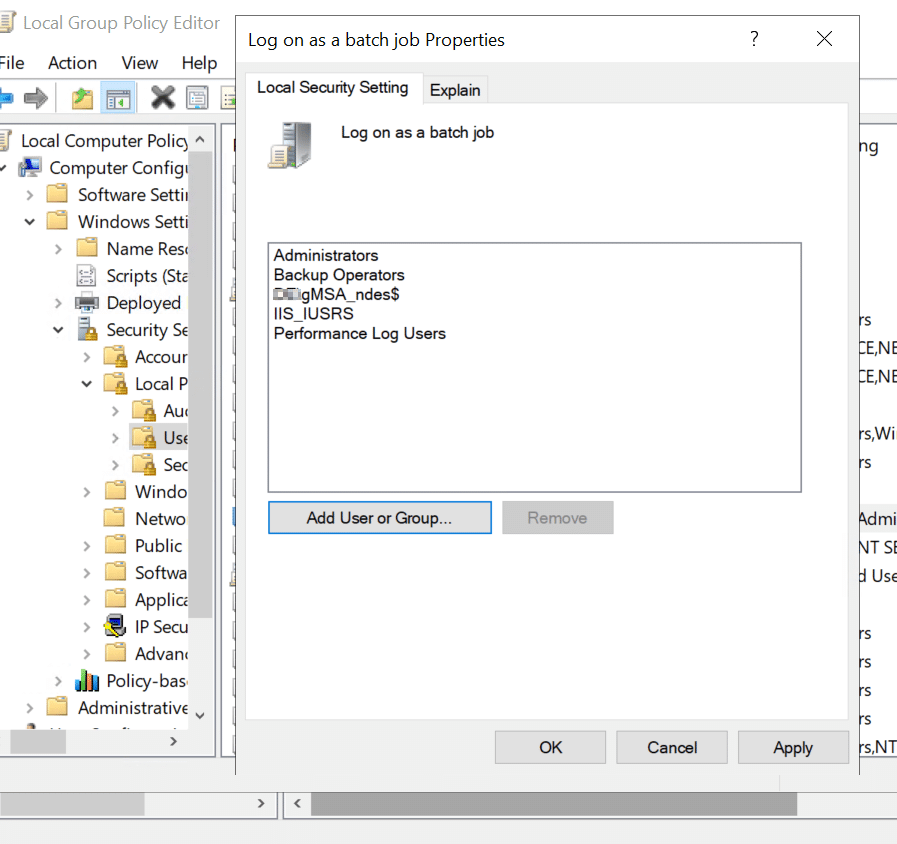
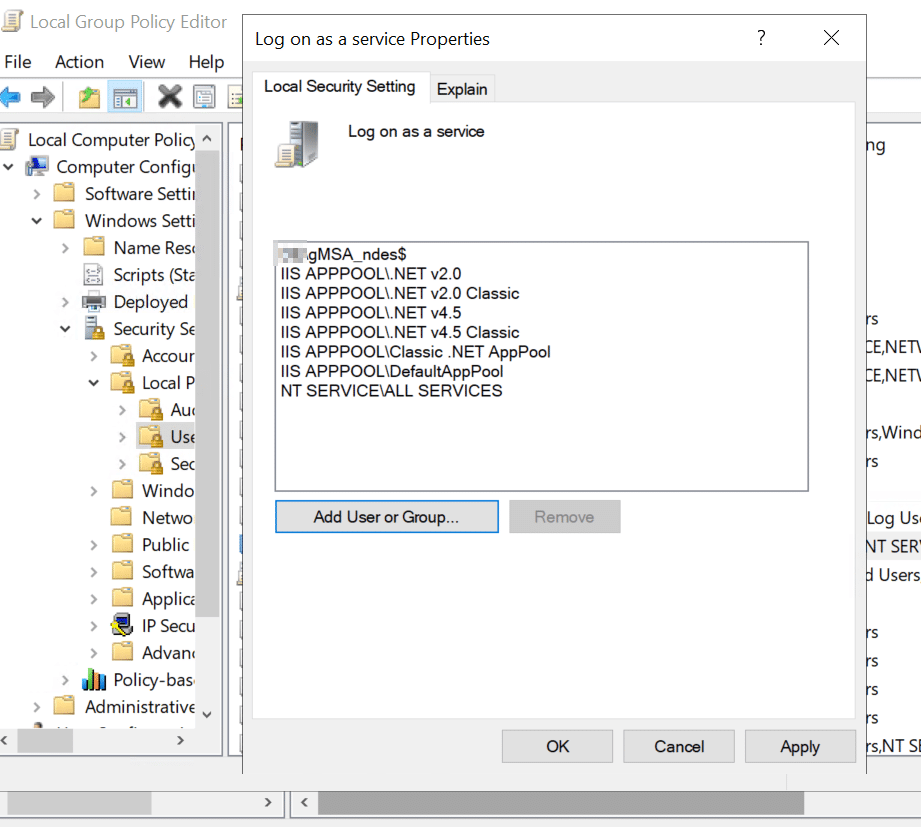
SCEP Application pool identity
As you might remember from having configured NDES, the SCEP service runs on IIS, so we need to replace the service account for the application pool identity.
Notice: Do not attempt to recycle the pool or restart it before you have done the last steps.
You MUST enter the gMSA account with the domain's NetBIOS name prefixed.
Example: DOMAIN\gmsa_ndes$
Please pay attention to the fact that the password box gets greyed out as soon as you enter the $ after the account name, this is how gMSA works, and you know that it is supported.
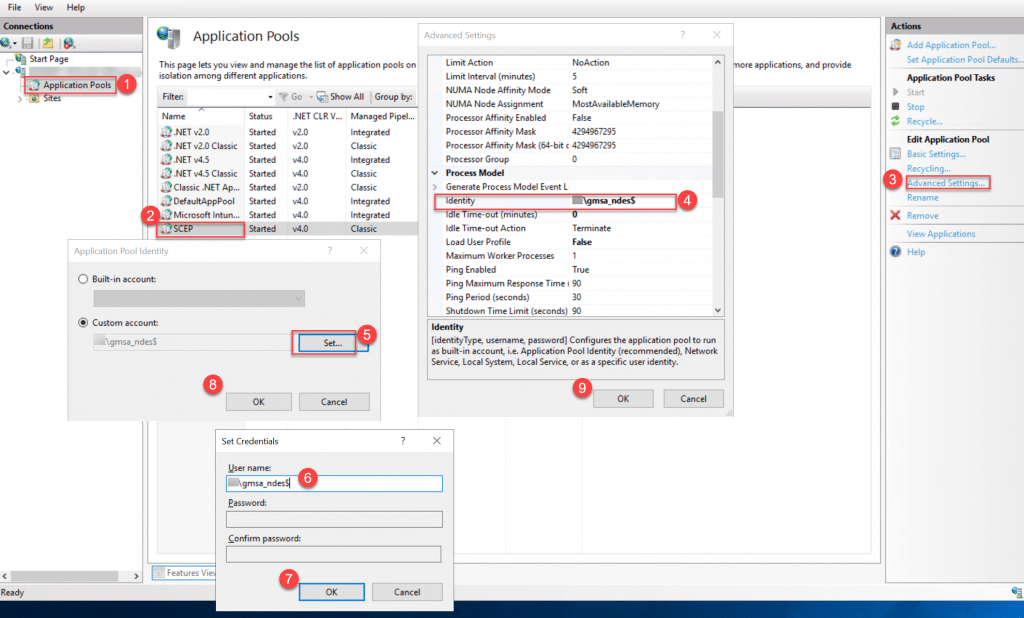
Configuring certificate template permissions for gMSA
The last step is to ensure that your gMSA account can actually request certificates from the Certificate Authority.
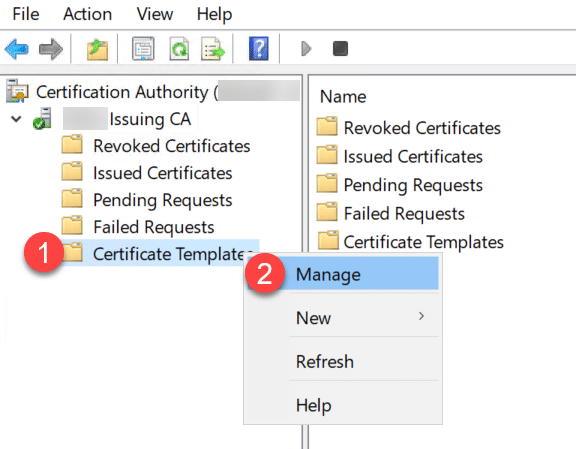
- Right-click on "Certificate Templates" and click on "Manage"
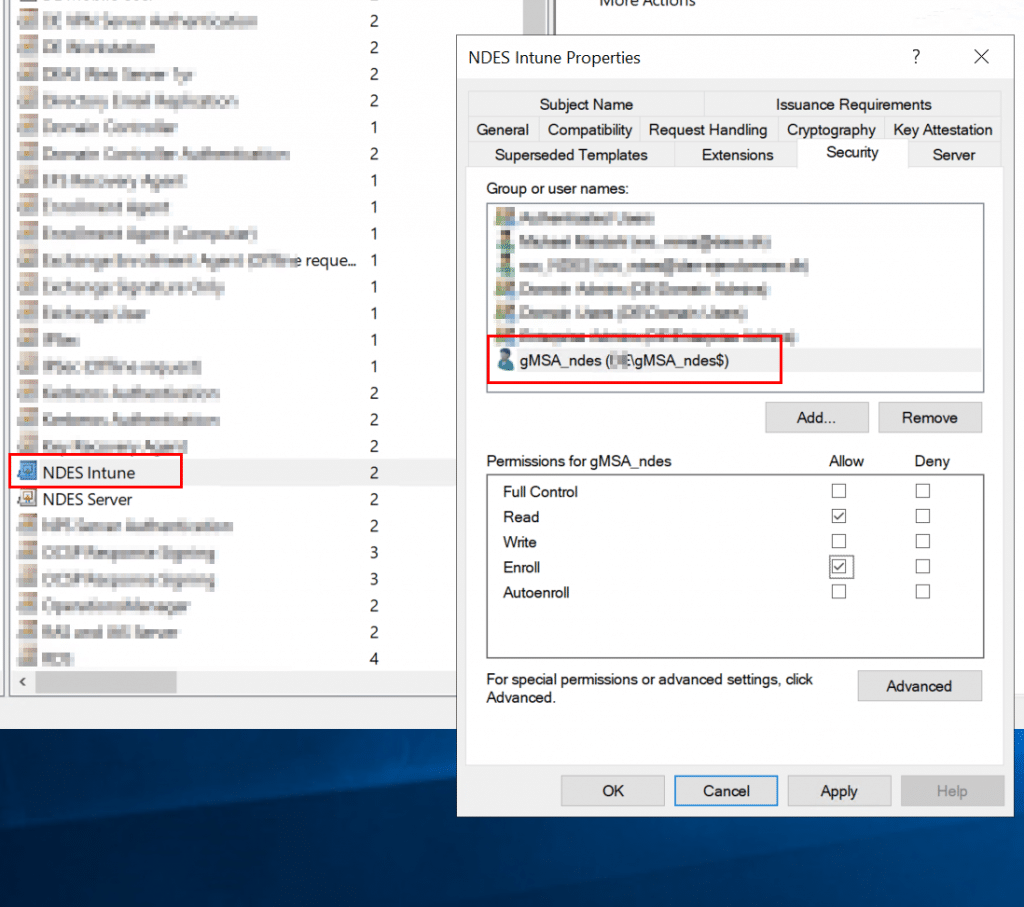
Add the gMSA to the ACL and make sure that it gets the "Enroll" permission.
Now, go back to the NDES server, and reboot it, to make sure everything gets started properly.
Troubleshooting and notes
Intune Connector account
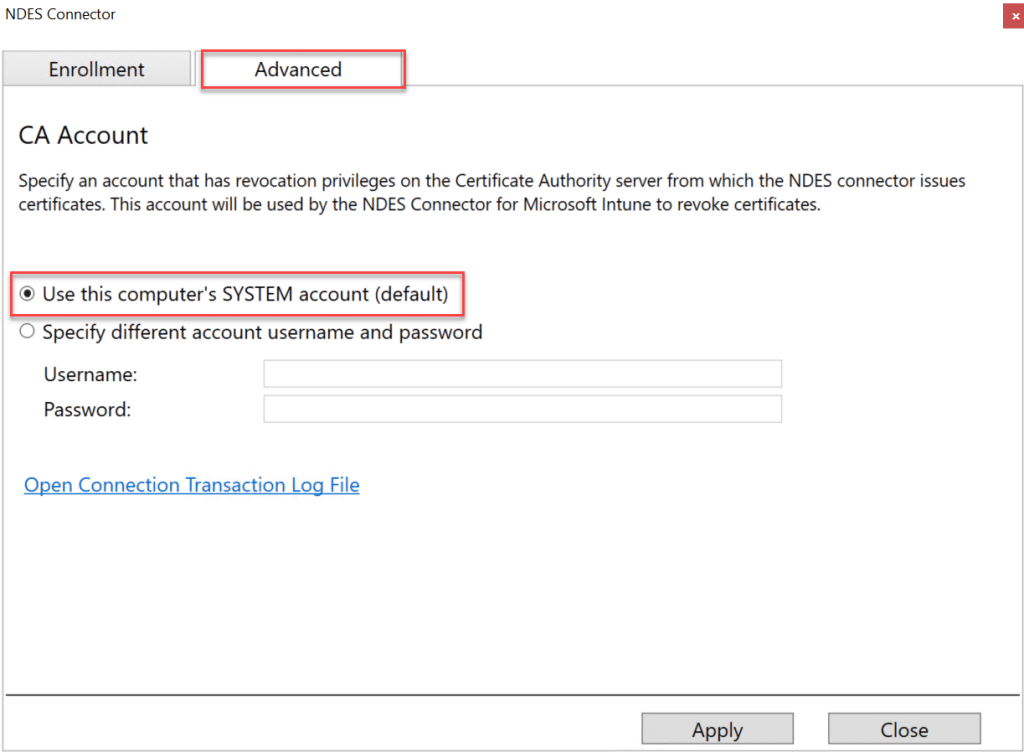
There is an advanced option to add a specific service account during the installation of the Intune connector. The UI for configuring this account unfortunately does not support gMSA.
You can find the UI for changing this setting in the folder "C:\Program Files\Microsoft Intune\NDESConnectorUI\NDESConnectorUI.exe" on the NDES server.
Windows Server 2012 specific
There is a known issue with doing this on Windows Server 2012. On another note: do not use Windows Server 2012 for anything that is public-facing!
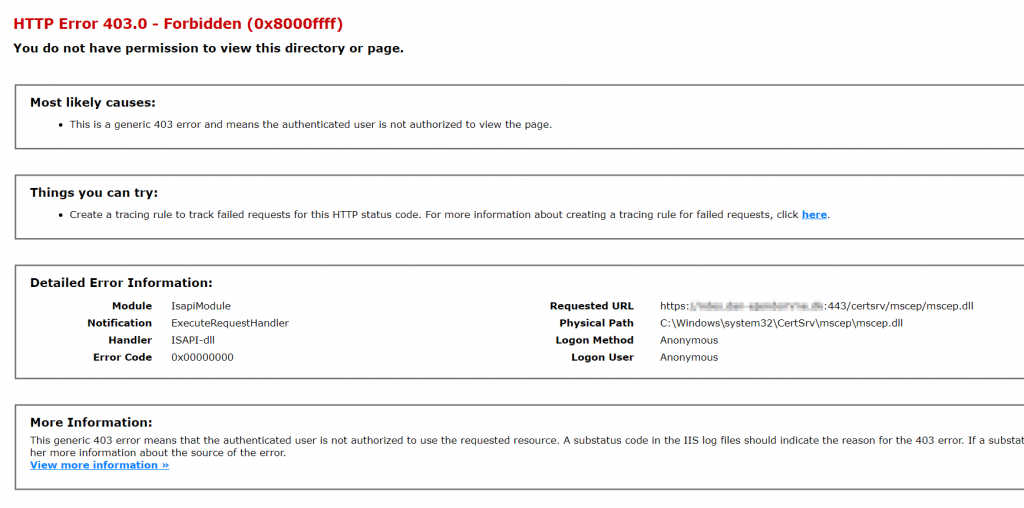
HTTP Error 403.0 - Forbidden (0x8000ffff)
Hey! This error is OK. And indicates that things are actually working with the Intune Connector.
Conclusion
You have now completed securing SCEP/NDES for Intune with gMSA and can be proud you did something good for the security of your systems!